Posters
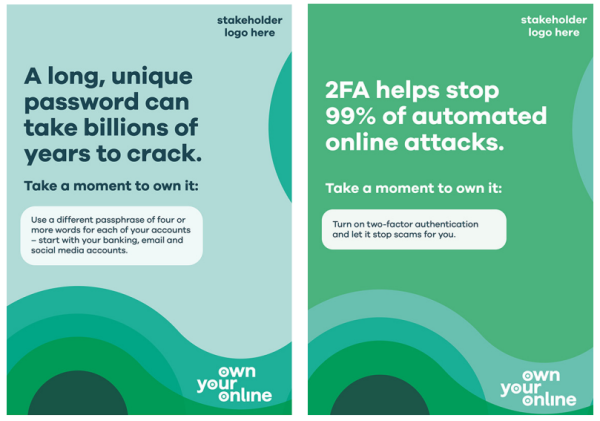
Take a moment passwords customisable poster
1 min read
Download
Take a moment to own it passwords customisable poster [PDF, 43 KB]
Adding your logo
- Download and save the poster using the link above.
- Open Adobe Acrobat: Launch Adobe Acrobat on your computer.
- Open the PDF file: Click on 'File' in the menu bar and select 'Open.'
- Access the Edit tool: In the right-hand panel, click on the 'Edit PDF' tool. This will enable the editing features of Adobe Acrobat.
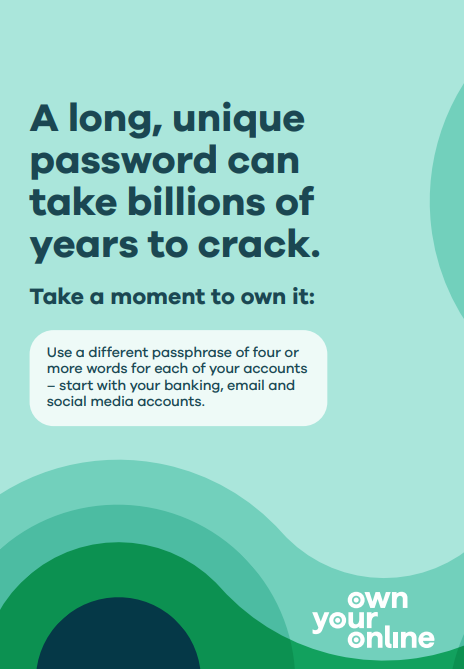
- Select the logo area: Place your logo into the allocated space. You can see suggested allocations, in the examples provided below.
- Insert your logo: After selecting the area, right click within the selection and choose 'Add Image.' A file browser window will appear.
- Locate your logo file: Select the file. Insert it to the allocated spacing. If your business logo has a colour range please use dark tones on the light teal, and light tones on the purple or green. You can see this in the examples provided.
- Adjust the logo position and size: Reposition your logo, to the top right corner, and resize it to match the allocated space. Please ensure the sizing leaves enough clear space and does not encroach on the copy. Click on the logo to display resizing handles, then click and drag the handles to adjust the size. To move the logo, click and drag it to the desired location within the selected area.
- Save the Changes: To save the edited PDF document, click on 'File' in the menu bar and select 'Save' or 'Save As' to save the modified PDF document with your edits.
Example of logo placement